Features
Everything Voxel Game Maker does, area by area: 19 areas, 134 features, all in one app.
Voxel modeling
You can build every character, prop and tile for your game in the same app you use to make the game.
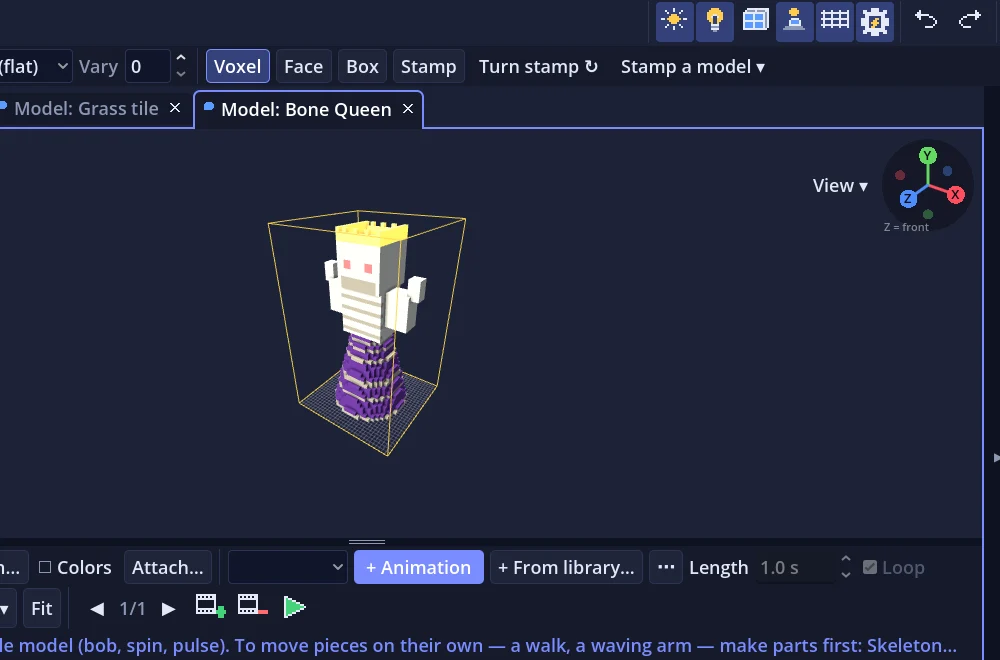
- Models up to 64³The Model tab edits one voxel model at a time, in a box up to 64 × 64 × 64 voxels, with quick sizes from 8³ to 64³.
- Full tool railSelect, Box select, Move, Rotate, Scale, Add, Remove, Paint, Fill, Line, Shape and Eyedropper tools, each with its own options bar.
- Brushes and modesBrush size 1–8 with Cube, Ball, Square or Disc tips, Voxel / Face / Box modes, and a Vary setting that picks nearby palette colors at random so surfaces aren't one flat color.
- Shapes and stampsThe Shape tool drops a box, sphere, cylinder, cone or pyramid (solid or Hollow), and Stamp mode repeats copied voxels or another whole model onto any face you click.
- MirrorsMirror X, Mirror Z and Mirror Y copy every edit across the model, so with all three on one click makes 8 copies, and Mirror Around the Selection moves the mirror to an off-center spot.
- Modify toolsTools ▸ Modify has Outline, Cover Top, Erode, Color Noise, Smooth, Repeat Selection, Make Symmetric, Gradient, Hollow, Fill Holes, Crop to Fit and Adjust Colors.
- Slice, Isolate and reference picturesSlice cuts the model open from any of six directions so you can draw on the inside layers, Isolate shows one part, and Ref ▾ puts a see-through reference picture behind the model.
- PalettesEach project has one shared palette, with presets such as PICO-8, Sweetie 16, DawnBringer 32 and Endesga 64, import from lospec.com or .hex/.gpl/.pal/.ase/.png files, and a Glow slider on every color.
- Import and exportImport MagicaVoxel .vox files or turn a picture into voxels; export models as .vox, .obj, .glb (with parts and baked animations) or a 1024×1024 .png render.
- 3D textCreate ▸ 3D Text… builds blocky 5×7 pixel letters as a new model, 1–8 voxels per pixel and 1–16 voxels thick.
Parts, skeletons and animation
Characters and enemies can walk, attack and react in your game without you having to hand-animate every frame.
- Parts hierarchyGroup a model's voxels into parts such as Body ▸ Head, arms and legs, each with its own pivot, using + Part, the Part brush and the Pivot tool.
- Ready-made skeletonsSkeleton… fits a Simple biped, Full humanoid, Four legs, Bird / winged, Snake / worm or Blob skeleton to the model's shape, finding the hips and neck by itself.
- Timeline and keyframesA Timeline strip with 20 frames per second, animations up to 10 minutes long, auto-keying, seven ease types (Smooth to Bounce), a Curves graph editor and an Events row for sounds, particles and screen shake.
- Pose tool with IKDrag a hand or foot and the elbow or knee bends to reach the mouse; Mirror posing, Feet stay on the ground, onion-skin ghosts and a motion trail help with posing.
- Animation libraryReady-made animations by category (Moving, Jumping, Fighting, Magic, Getting hit, Emotes), with their own sets for four-legged animals, birds, snakes and blobs, and Add the game set for idle, walk, run, jump, attack, hurt and die at once.
- Reuse and mixCopy animations to another model by matching part names, Mix in another animation on chosen parts (a walk that waves), Stretch to length, Mirror left ↔ right and Speed from ¼× to 4×.
- Attachment pointsThe Attachments window adds points on parts where models are held or worn, such as a sword in the Right hand or a hat on the Head, and they move with the part's animation in the game.
- Flip-book framesModels can also animate by frames with their own fps, like the sample's waving villager, water and cave torches.
- Sprite sheetsSave as a picture strip draws 8 frames of an animation side by side in one see-through PNG.
Level building
What you build in the World view is exactly what players walk around in.
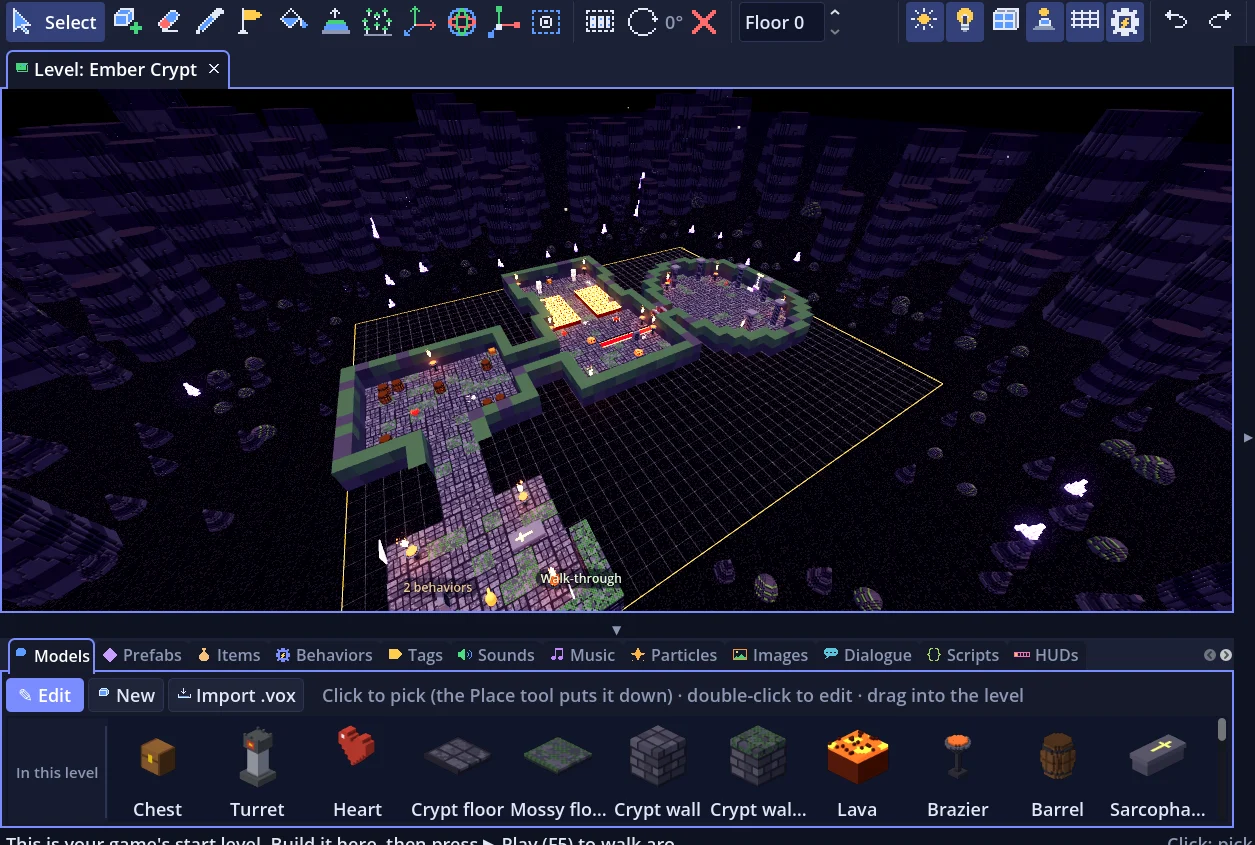
- World toolsSelect/Move, Place, Erase, Eyedropper, Rotate 90°, Player start, Fill, Raise / lower terrain and Scatter, plus Move, Rotate and Scale handles with fine steps.
- Big worldsTools ▸ World Size… sets a level up to 1024 × 1024 tiles and 128 height levels.
- Generate TerrainMinecraft-style ground several blocks deep with hills, lakes and caves, in a Meadow, Desert or Snowy biome, with its own seed, depth, hill height and number of caves.
- Dig & buildWith Dig & build on, players break ground blocks into their bag and place them again, and what they build is kept in their saves.
- Walk while editingPress G to walk the game character around the editor world while you keep building with the left mouse.
- ZonesDrag out a named area that can show a banner, change the music and run actions when the player enters or leaves it.
- Groups, tags and side-by-sideGroup objects with Ctrl+G, tag models such as water or wall, and use World + Model Side by Side to see a voxel edit on every placed copy at once.
- Starter modelsEvery new project includes 15 starter models, including grass, path, blocks, stairs, water, wall, fence, bridge, pine, lamp and chest.
Worlds, level goals and the World Map
You can join levels into worlds the way Super Mario 3 does, each level with its own goal.
- Worlds of levelsA world is a group of levels in order, such as World 1: Grass Land, managed from the Explorer with New level, Make start world and Move to world.
- Joined levelsJoin a level's north, south, east or west edge to another level, and in the game walking off that edge carries on into the next one.
- World MapThe World Map tab (Ctrl+M) shows a world's levels as cards laid out by their joins, with zoom from 0.3× to 3×, and a + on a free side makes a new joined level there.
- Level goalsEach level has a chain of objectives (Talk to a character, Collect items, Reach a zone, Defeat enemies, Bring an item, Finish a quest, A variable or switch is set) and actions that run when it's complete.
- World goalsA world is complete when all of its levels that have goals are done, and then it runs its own actions, such as going to World 2 or winning the game.
- Safe deletesDeleting a level first lists its joins, objects, zones and every door, teleport or script that points to it, and one Ctrl+Z brings all of it back.
Sky, weather, day & night and graphics
Each world gets its own mood without you having to touch shaders or lighting code.
- Sky & lightSet sky color, sun, ambient light, fog and ground mist per world, or pick a preset: Day, Sunset, Night, Overcast, Misty or Cave.
- WeatherRain, snow, fireflies, dust motes or falling leaves around the camera, with an Amount setting, shown in the World view too.
- Day & night cycleSet a Day length in minutes and a starting Time of day, and scripts can use hour(), set_hour(h) and is_night().
- SurroundingsFill the space past the map's edge with scenery such as Meadow, Mountains, Ocean & islands, City skyline, Candy land, Alien planet or Spooky woods.
- Glow & lookGlowing voxels, bloom, tone mapping (Plain, Filmic, ACES, AgX) and screen filters: Pixelated, CRT TV or Retro palette.
- Enhanced graphicsAn Enhanced mode for newer Vulkan GPUs adds bounced light, contact shadows, reflections and light shafts, and falls back to Standard on PCs that can't run it.
- Big-world speedA draw distance, distance fade, loading far 8 × 8-tile patches as the player comes near and combining still objects (about 15× fewer draw calls) keep large worlds smooth.
Prefabs
You set up an object or a whole set of objects once and reuse it in every level and every project.
- Save as prefabSave one object or a whole set, such as a camp with tent, fire and logs, with every model, behavior, turn, size and position.
- Drag to placeDrag a prefab from the Prefabs panel into the World view to drop a copy there, and a several-object prefab lands as a group.
- Apply to every copyChange one copy and click Apply to every copy to update the prefab and all its copies in every world, or Revert or Unlink it.
- Your prefab libraryEvery prefab is also saved to Documents/Voxel Projects/Prefabs and listed in every project's Prefabs panel.
- .vgmprefab filesExport a prefab with its models, colors, sounds, particle effects, dialogues, scripts and items, and import it into any project.
- Spawn in the gamespawn("Camp") or the Spawn object action makes whole prefab sets while the game is running.
Behaviors
You make objects do things by dragging a behavior onto them, with no code.
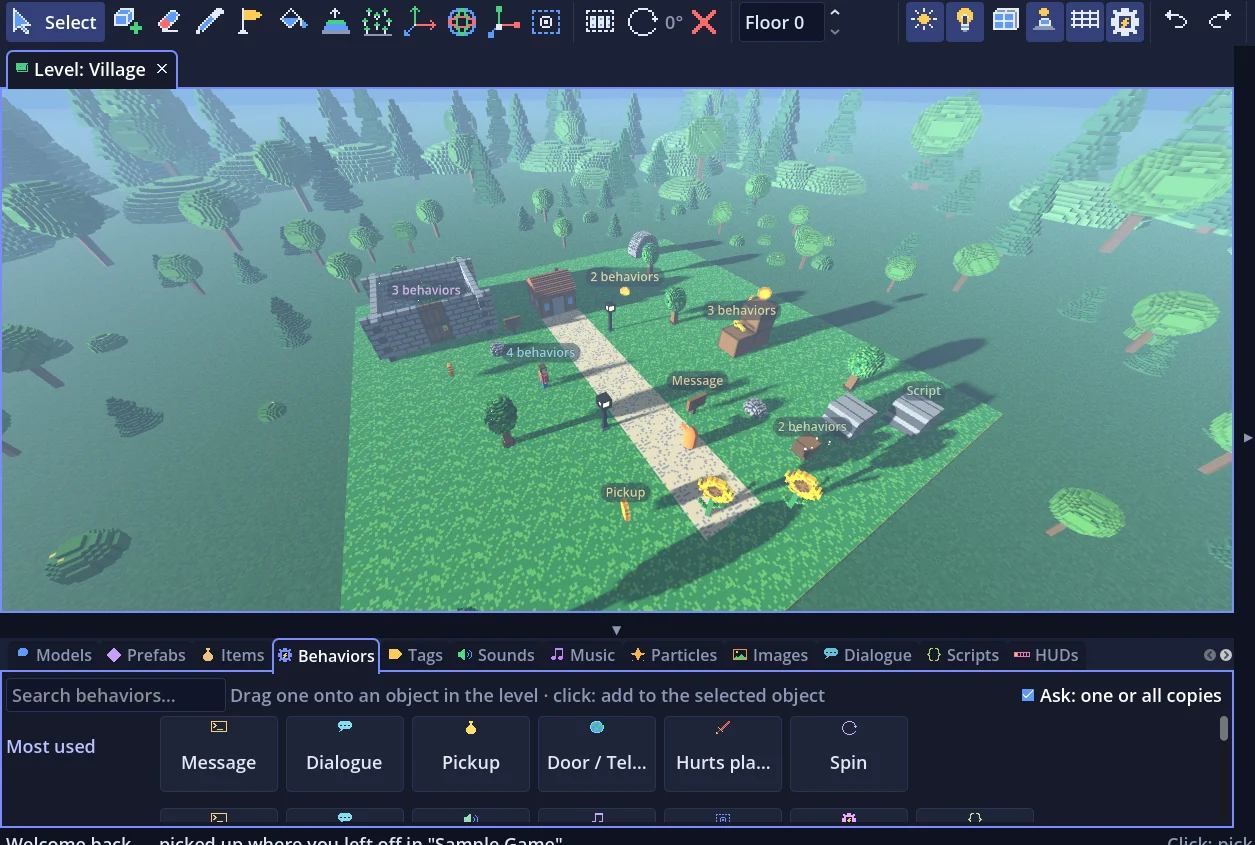
- Drag-and-drop tilesThe Behaviors tab shows every behavior as a tile that you drag onto an object, and it asks whether to add it to just this copy or to all of them.
- Story & soundMessage, Dialogue, Speech bubble, Sound, Music zone and Trigger (When / If / Then / Otherwise conditions and actions, with game-wide switches).
- Items & shopsPickup, Chest / container, Harvestable, Crafting station, Shop and Drops loot.
- Moving aroundDoor / Teleport, Teleporter, Conveyor, Bounce pad, Moving platform, Opening door, Pushable block, Ladder, Swimmable water, Jump-through platform, Crumbling floor, Seat / bed and Checkpoint.
- Enemies & dangerHealth / breakable, Hurts player, Shooter (Straight or Radial patterns), Chase player with A* pathfinding, Patrol path, Spawner and Animations.
- LooksLight (with Flicker and Only at night), Wind sway, Particles, Spin, Face camera (sprite), Walk-through, Camera zone and Attached HUD.
- Patrol paths with stopsClick tiles to set stops, give each one a name, a wait time, a speech bubble and actions, and preview the walk with ▶ Walk.
- Projectile behaviorsGive a model Damage, Destroy (vanish or explode) and Trail behaviors to set what happens when it's fired.
Items, inventory, crafting and shops
You can give your game loot, gear, money and crafting with a few settings.
- Items panelEach item has a description, an icon model, a kind (item, money or key), what using it does, and a usual price.
- Weapons, tools and armorEquip items as a weapon (+ damage), a tool such as an axe or pickaxe, or armor (% less damage taken), with a Held in hand model and Reach.
- Ranged weaponsShoots turns a weapon into one that fires a projectile model, like Grassland's Hunting bow, and arrows tagged sticks stay stuck in what they hit.
- Placeable itemsPlaces puts a prefab or model on the tile in front of the player, such as seeds, blocks or traps, optionally only on tiles with a given tag.
- Inventory and skillbarI / Tab opens the inventory, and a skillbar of 8 numbered slots (1–9 in settings) is used with the number keys or mouse wheel.
- CraftingCrafting stations list recipes one per line, such as Sword = Iron 2, Wood 1, and show what you have and need.
- ShopsShops sell stock as Item = price lines and can also buy from the player for a percentage of the price.
Dialogue and quests
Characters can talk, give quests and react to what the player has done, with no code.
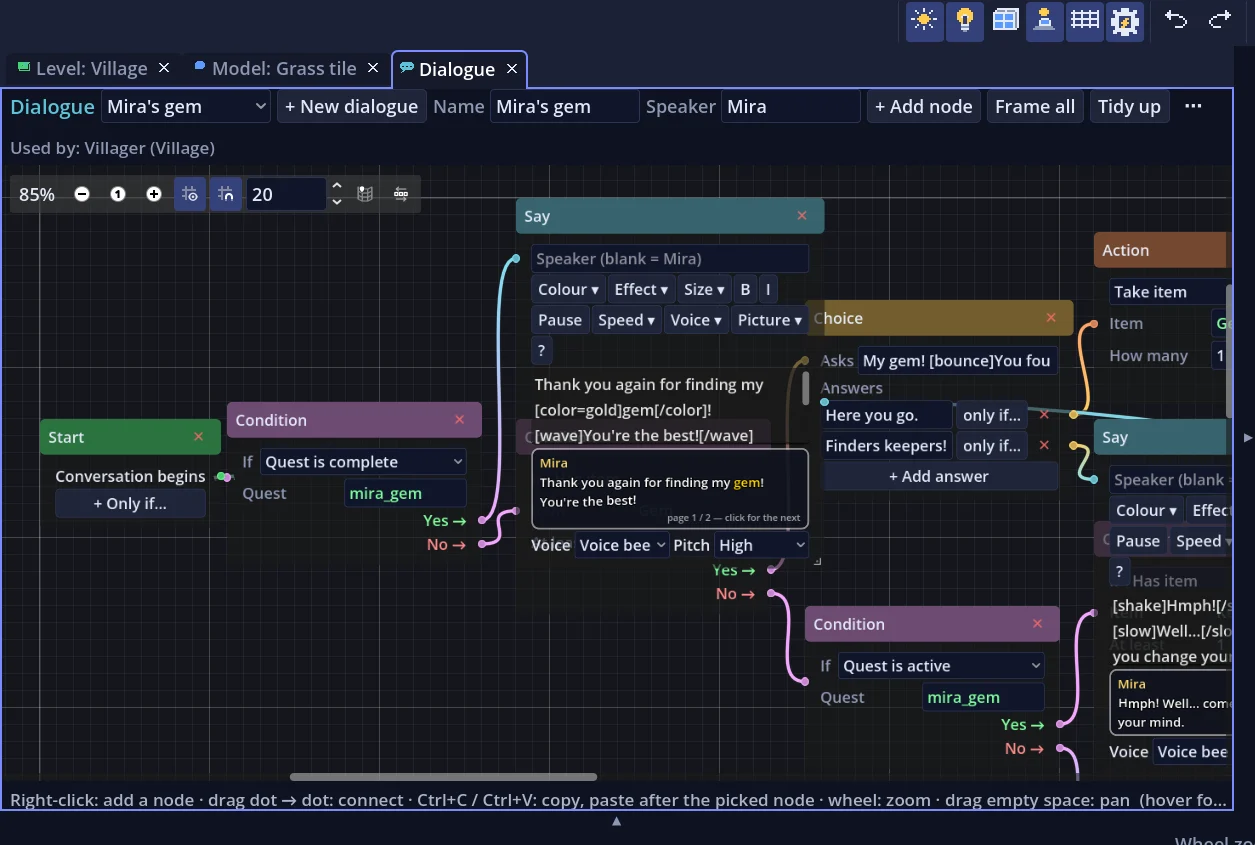
- Node graph editorThe Dialogue tab (F6) builds conversations from Start, Say, Choice, Condition, Action and End nodes, with zoom, pan, bendable connections and undo.
- Choices with conditionsEach answer in a Choice node can lead somewhere different and can be hidden unless a condition holds.
- ConditionsHas item, doesn't have item, quest not started / active / complete, counter at least, switch on / off and health below, with wildcard item names such as * key.
- ActionsGive or take items, start or complete quests, add to counters, set switches, play sounds, change music, heal or hurt, teleport, start another dialogue or win.
- Quests on screenStarted quests show their goal on screen and are listed top right in the game.
- Drag onto a characterDrag a dialogue onto an object to give it a Dialogue behavior, and named speakers turn to face the player.
Visual Scripts and Quick code
You can add game logic by connecting nodes, and write code when you want more control.
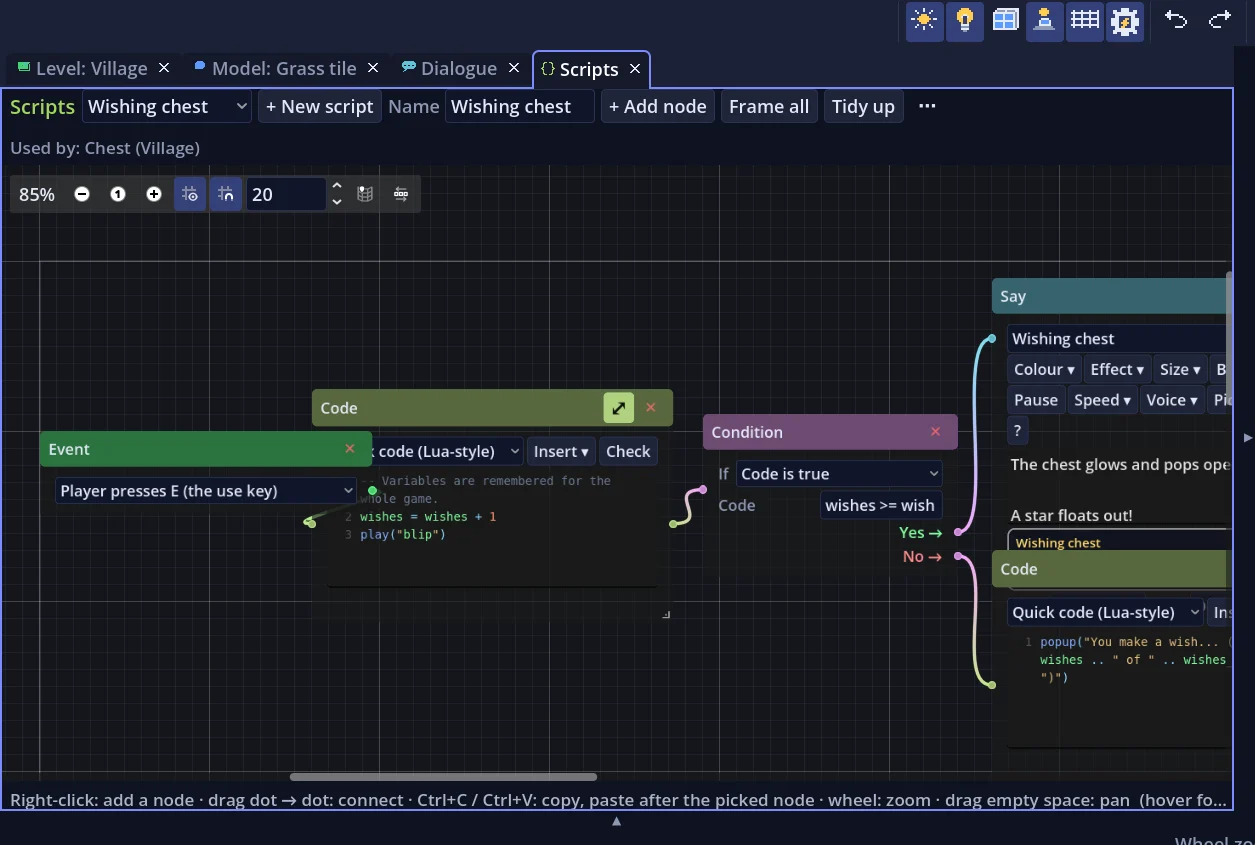
- Visual ScriptsThe Scripts tab (F7) uses the same node graph as Dialogue, with Event, Condition, Action, Wait, Loop, Random, Code, Say / Choice and End nodes.
- EventsScripts start on Player presses E, touches it, enters the world, It is destroyed, Every few seconds, It bumps into something, Player presses a key and more.
- Quick code (Lua-style)Code nodes use Quick code, a Lua-style language with functions, closures, tables, tasks (every, after, run_async), messages, require libraries and a Data tab.
- Editing helpAutocomplete with Tab, an Insert ▾ list of every function, Check for mistakes with line numbers, and a full-size code view.
- Debuggingwatch(), breakpoint() (F5 / F10 in Play) and clickable errors in the Output panel; a script error doesn't stop the game.
- Variables and switchesGame-wide variables, World variables and switches are listed and edited in the Explorer.
- Player controls scriptThe player gets a script with events for each state (walks, jumps, attacks, is hurt…), and My own player event… adds new moves like a Dash bound to any key.
- No code neededEverything code can do with objects and loops can also be built from nodes, and the Quick Code Reference has a code ↔ node table.
HUD designer, Skin and Paint
You decide exactly what players see on screen and how menus look.
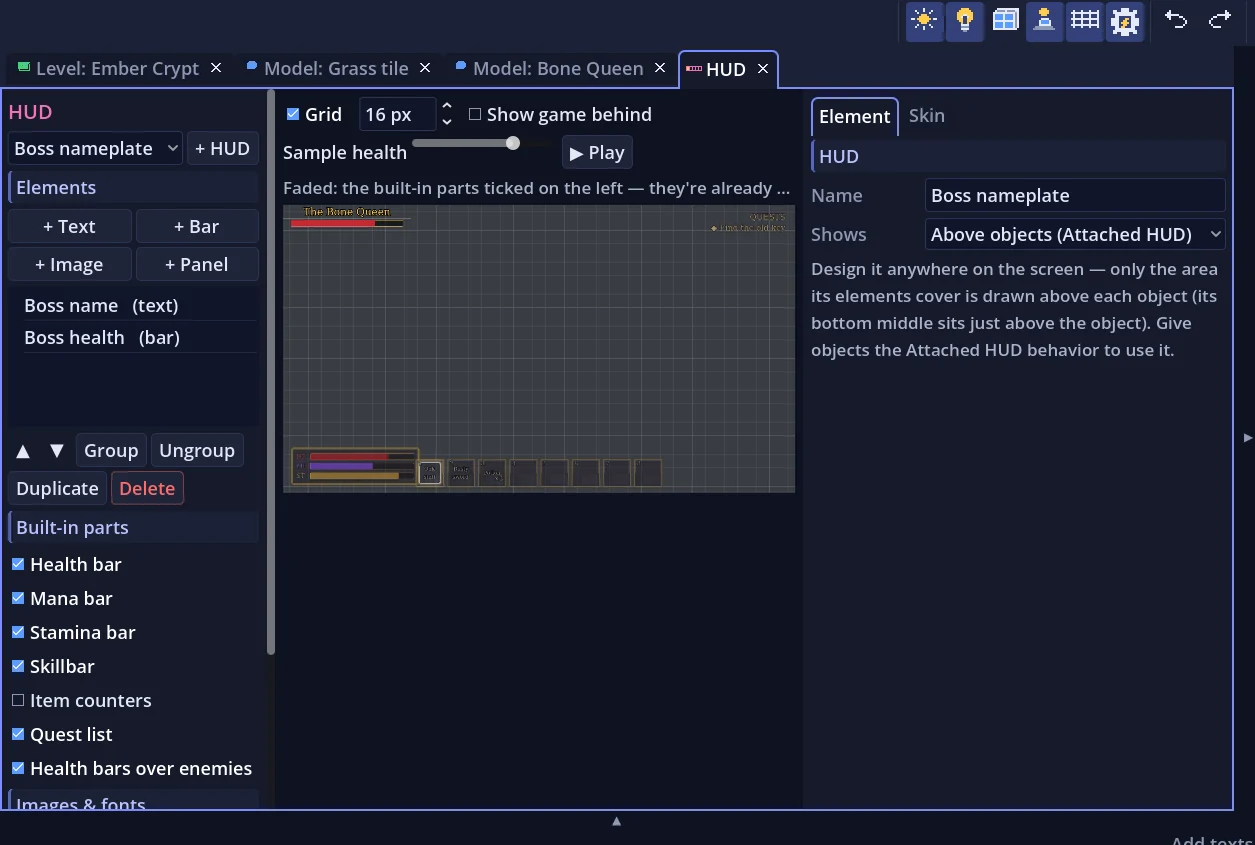
- Several HUDsMake a main HUD, a boss bar or a minigame score, choose which worlds each shows in, and switch them from scripts with show_hud and hide_hud.
- HUD tabAdd Text, Bar, Image and Panel elements on a 1280×720 preview, pin them to a corner, edge or the center, and group them.
- Live valuesText shows values such as {hp}, {money}, {score}, {lives}, {time} or {total:Coin} that update by themselves.
- Show whenHide an element unless something is true, such as hp < 30 for a low-health warning.
- Attached HUDsHUDs that float above objects for nameplates, enemy health bars, shop signs and quest markers.
- SkinRestyle the built-in screens: font, colors, menu panels, message box, buttons, skillbar slots, the bars and the title screen, with 9-slice images.
- PaintA pixel editor for icons, frames and logos with pencil, dither, shapes, fill, magic wand, mirror drawing, palettes and a 9-slice preview.
Sound Gen and Music Gen
You can make your own sound effects and soundtrack inside the editor.
- Sound GenGenerate retro sound effects (Pickup / Coin, Jump, Laser / Shoot, Explosion, Hurt, Power-up, Blip, Random) with one click each, sfxr-style, and Mutate them.
- Sound shapingEach sound is made of parts with a wave, pitch slide, envelope, duty and vibrato, plus bit crush, lo-fi, repeat and echo effects.
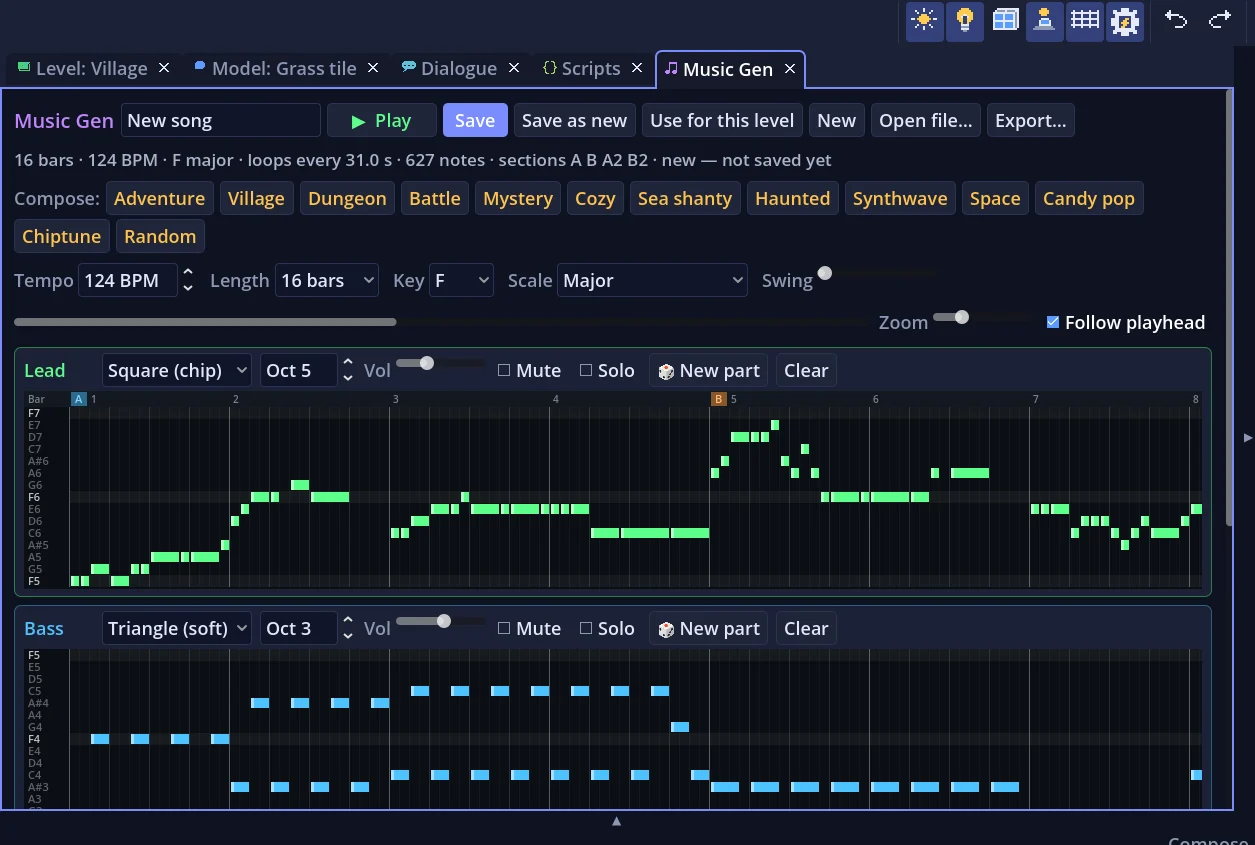
- Music GenCompose looping chiptune songs in 13 styles, including Adventure, Dungeon, Battle, Sea shanty, Synthwave and Candy pop, written in sections with fills.
- Song and track controlsTempo, 1–64 bars, key, scale and swing; Lead, Bass, Chords and Drums tracks with instrument, mute / solo and 🎲 New part.
- Note gridsClick to add notes on rows that always stay in key.
- Drag to useDrag music onto the ground for a world's music or onto an object to make a Music zone, and drag sounds onto objects to make them play.
- Import and shareImport WAV, Ogg and MP3 files, and export songs as .vgmsong files for other projects or as .wav.
Particle effects
You can make sparks, smoke, magic and trails that match your game's look.
- Particles tabDesign effects with a live 3D preview (F8), choosing the background, what the effect sits on, and whether it stays still, walks in a circle or flies like a shot.
- GenerateBurst, Stream, Ambient, Rising and Random each roll a new effect, and Mutate nudges it.
- Detailed settingsEmission, Shape & offset, Motion, Physics (trails, gravity, wind, drag, swirl), Size & spin and Color & look.
- Model particlesParticles can be a square pixel, soft dot, streak, voxel cube or one of your own models, such as coins, leaves or bones.
- Built-in effectsSparks, smoke, fire, magic sparkles, bubbles, steam, fireflies, falling leaves, explosion, dust puff, confetti, fountain and healing.
- Drag onto objectsDrag an effect onto an object to give it a Particles behavior, or play one from code with particles("name").
Game Settings
All the rules of your game are on one set of pages, like Roblox Studio's Game Settings.
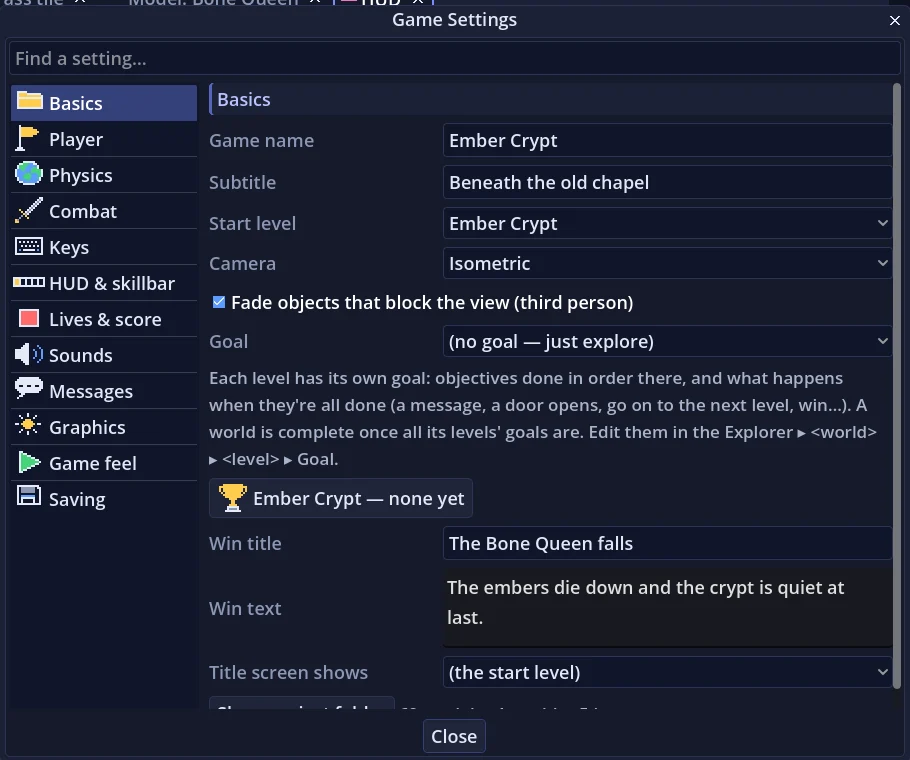
- CamerasThird person, Top-down, Isometric or First person, plus Camera zones, Camera looks at cutscene shots and Shake screen.
- Player statsMax HP, Mana and Stamina with regen, stamina cost of running and jumping, and shooting settings.
- CombatShooting and melee with damage, reach and knockback; enemies show ! when they spot you, attack up close and can run away at low health.
- PhysicsWalk and run speed, jump height, gravity, fall damage, and Jumps in the air for a double jump.
- Game feel and JuiceFootsteps, screen shake, hit-stop, coyote time, and one Juice slider from Calm to Juicy for pops, squash-and-stretch and hit shakes.
- Lives, score and timersLives shown as ♥, a score with best score kept per game, countdown timers, and animated win and lose screens.
- GoalsNo goal, Collect every …, Every level's goal complete or Every world complete.
- Saving3 save slots plus autosaves at doors, Checkpoints and completed goals, encrypted with AES-256 so players can't edit them in a text editor.
- Keys and optionsSet the starting keys; players can rebind keys and change volume, fullscreen, VSync and mouse sensitivity in Options.
- UndoableGame Settings changes are undoable with Ctrl+Z, and Find a setting… searches every page.
Play-testing and debugging
You can try your game the moment you change it and find problems quickly.
- Play from the editorF5 plays from the player start, Ctrl+F5 from where the camera is looking, and Shift+F5 stops.
- Output panelThe game's console output and script errors stream into the editor's Output tab.
- Debug keysF3 watch panel (FPS, position, health, variables, switches, items, timers), F4 god mode, F6 teleport, F7 refill stats.
- Pick from the gameF8 selects the object in the middle of the game's view in the editor's World, and Shift+F8 opens its model.
- Pre-flight checksPlay and Export first check for things that stop a game working, such as nothing to stand on at the Player Start, and offer a one-click fix.
- Separate test savesPlaying from the editor saves to its own folder, so testing never touches the saves of a game you exported.
Export
Players can run your game with nothing else installed.
- Windows first, more to comeWindows (.exe + .pck) is the main target; Linux, Mac and Web builds can be exported too (Mac builds aren't code-signed or tested on a Mac yet).
- Your name and iconThe export dialog takes the game name, output folder and an icon PNG.
- itch.io-ready web buildThe Web build runs on any static host such as itch.io or GitHub Pages without special headers.
- PosterEvery export also saves a poster of your World view framed with the game's title and subtitle, handy for an itch.io page.
- README and licenseEach export includes a README and the license notices.
Welcome window, tutorials, challenges and sample worlds
New users have a guided way into their first game, plus finished games to learn from.
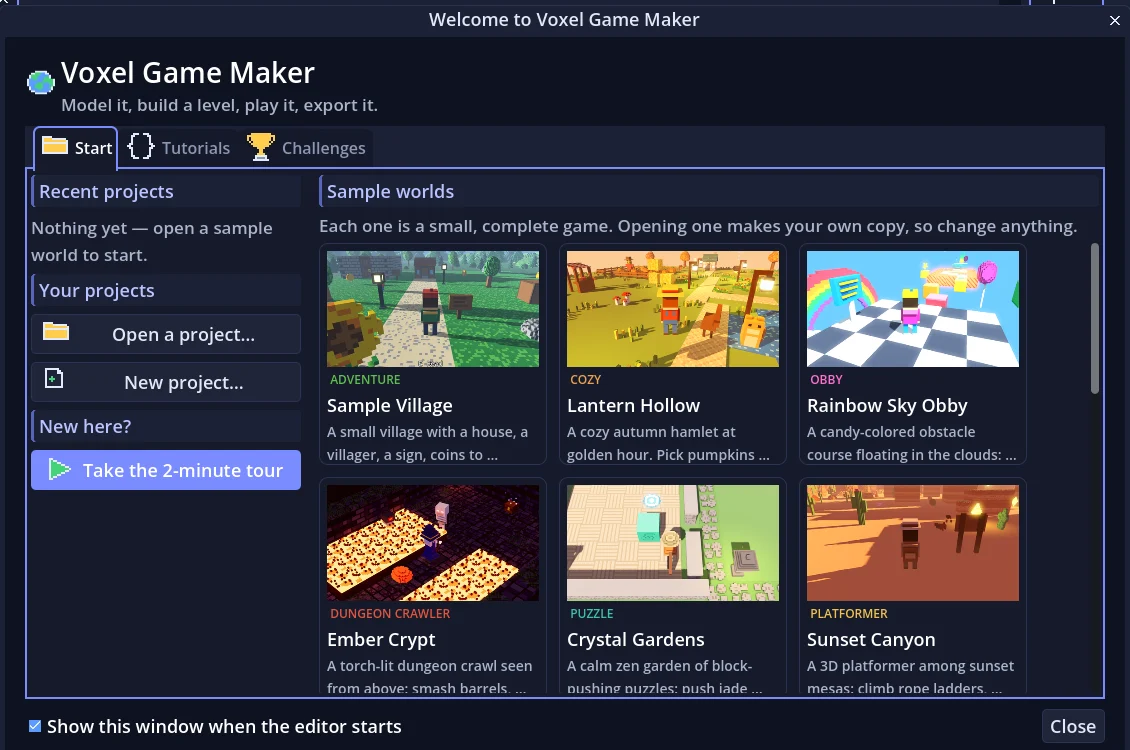
- Welcome windowRecent projects, Open, New project, and the sample worlds, each opened as your own copy to change.
- 2-minute guided tourFive steps (make a model, draw it, put it in the world, play it, export it), each moving on by itself when it's done.
- ChallengesThree short goals inside the samples, such as Give Mira a crown, with difficulty and time chips and conditions that tick themselves off.
- Make your first gameA seven-step checklist in an empty world, from Add a floor to export, that ticks itself and ends with You made a game!
- 15 sample worldsSmall complete games in different genres, including Lantern Hollow (cozy), Rainbow Sky Obby, Ember Crypt (dungeon crawler), Sunset Canyon (platformer), Sugar Rush (racing) and Neon Rooftops (parkour).
- Each sample is uniqueEvery sample has its own player character, its own skin of fonts, colors and frames, and its own HUD.
- TemplatesFile ▸ New Project offers a Blank project or template picture cards, including Hills & Caves, a generated Minecraft-style world with Dig & build on.
Translations
You can release your game in more than one language.
- Translate tabTranslate (F10) lists every text a player reads, from items and dialogue to menus and Options, with where it comes from.
- Add languages+ Add language… adds languages such as Français, Español or 日本語; untranslated texts stay in the original.
- CSV for translatorsExport CSV… and Import CSV… move texts to and from a spreadsheet or a translator.
- Play in a language▶ Play in it plays the game in that language, and players pick their language in Options.
Editor comfort
The editor stays out of your way and keeps your work safe.
- Familiar layoutLaid out like Roblox Studio, with Explorer, Properties, Palette and History on the right and asset panels along the bottom.
- Undo historyEvery change is undoable, and the History tab lets you click back to any of the last 100 steps (adjustable).
- BackupsAutosaved backups while you have unsaved changes; the newest 10 are kept and File ▸ Restore Backup opens one as a new project.
- Picks up where you left offReopens your last project with the same world, tabs, camera, tool and window size.
- 14 themesThemes include Midnight (the default), Dark, Nord, Ocean, Forest, High Contrast, Light and Paper, plus font size and UI scale.
- Search and shortcutsCtrl+P searches commands, models and worlds, and Help ▸ Keyboard Shortcuts (Ctrl+/) lists every key.
- Laptop-friendlyThe editor fits a 1280-wide laptop screen.