Docs User guide
Model library, import & generators
Get models without building them by hand: your library, the built-in packs, importing .vox and meshes, Generate Model and the Character Generator.
Four ways to get models without building them voxel by voxel: your library (models you keep
for every project), the built-in packs (the sample worlds' models by theme), Import
Models (MagicaVoxel .vox files and 3D meshes) and the Model Generator.
#The Library tab
The Library tab sits next to Models and Prefabs in the bottom panel. Pick what to browse at its top left:
- My library — your models, kept in one folder on this computer (
Documents/Voxel Projects/Models; Open folder opens it). Subfolders are sections (an imported asset pack keeps its own). Each model is a.vgmmodelfile (JSON: its voxels, frames, parts, animations and attachment points, the colors it uses, its tags, who made it and its license), so you can copy them to another computer or share them. - Built-in packs — Starter, Dungeon, Lichgate, Village, Canyon & nature, Tropical, Sci-fi, Spooky, Neon city, Candy and Zen garden: the models of the sample worlds, free to use in your games. They're read-only; using one copies it into the project.
Double-click a model (or drag it into the level) to use it: it's copied into the
project's Models (once — using the same one again reuses that copy) with its colors put in the
palette (the same color where there is one, else a free slot, else the nearest), and picked for
the Place tool. One undo step. The search box matches names, tags and sections.
Right-click for Add to project, Add and edit, and — in your library — Show in folder
and Remove from my library… (projects that already use it keep their copy). Dropping a
.vgmmodel file on the window brings it into the project too.
Saving to your library: right-click a model in Models ▸ Save to My Library… — its name, tags, a section (a subfolder; empty = the top), Made by (remembered) and its license (All rights reserved, CC0, CC BY 4.0, Free to use in games — or type your own). Saving a model with the same name again in the same section updates it.
#Import Models (File ▸ Import Models…, Ctrl+I)
Bring in MagicaVoxel .vox files or 3D meshes (.glb, .gltf, .obj): Add files…,
Add a folder… (every importable file in it and its subfolders), or drop files on the
window. Pick a file in the list to see it as voxels, turning, before importing. Then:
- Colors — Add new colors (the file's colors join the palette; an equal color already there is reused, and when the palette is full the nearest is used), Nearest colors only (the palette stays exactly as it is), or Use the file's colors (the palette's slots take the file's colors — models already in the project change color; for a project built from these files).
- .vox scenes — a MagicaVoxel file can hold several objects: A model per object (each keeps its name from MagicaVoxel's outliner) or One model, as laid out (the objects in one model, where they are in the scene). Hidden objects are left out; objects' turns in the scene aren't (they keep their own orientation).
- Over 64 voxels — models are at most 64 voxels on a side. Split into parts makes models of at most 64 (named part 1, part 2…) and a prefab that places them together, so the whole thing still goes down in one click; Shrink to fit makes it smaller (each block of voxels takes its most used color).
- Meshes — Size: voxels along the mesh's longest side (16 = one tile; up to 128, split
or shrunk past 64), Fill the inside (solid, or just the surface), and Colors at most
(the most used colors are kept, the rest go to the nearest). Colors come from the mesh's
textures, vertex colors and material colors (
.obj: its.mtl—Kdcolors andmap_Kdtextures). Low-poly and stylized art turns out well; detailed models lose detail at small sizes — try a bigger Size, then shrink or split. At most 200,000 triangles. - Also save to My Library (and a Section) — keeps every imported model in your library too: import a whole asset pack folder once and it's a section of your library for every project. Files with the same name are kept side by side (box, box 2).
Everything imported — the models, the prefabs for split ones and the palette — is one undo step. What happened (colors added or matched, models split or shrunk, files that couldn't be read and why) goes to the Output tab.
#Generate Model and the Character Generator
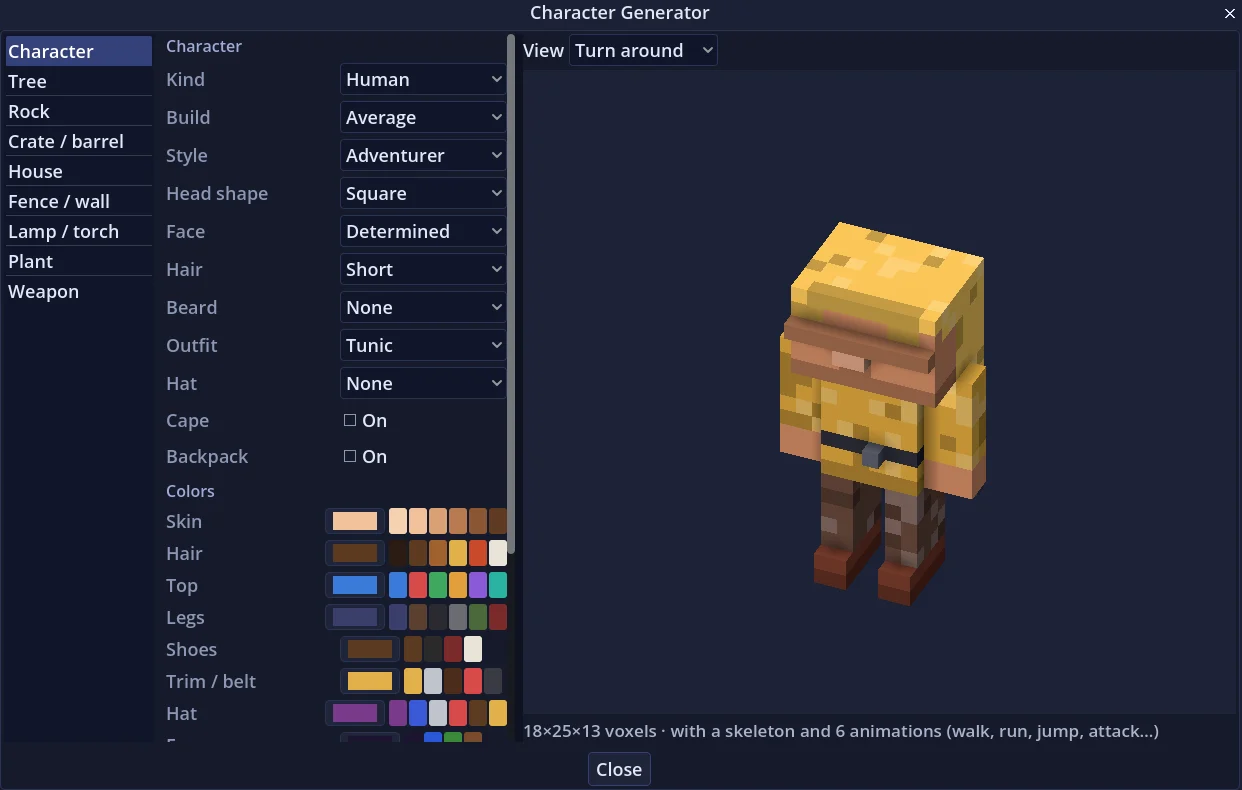
View ▸ Generate Model… (under Generate Level), Create ▸ Generate Model… or the Library tab's Generate…; Create ▸ Character Generator… and Create ▸ Weapon Generator… open it on Character or Weapon. Pick what to make on the left, set it up in the middle, and watch it on the right. Drag the bar between the settings and the preview to make either one wider. View above the preview: Turn around, or Front, Back, Left side, Right side or Top (each sways a little left and right so you can see its depth).
- Character — Kind (human, elf, dwarf, orc, goblin, skeleton, robot, zombie), Build (kid, slim, average, stocky, tall), Style (adventurer: blocky, square-shouldered, a head about a quarter of the height, in the spirit of dungeon-crawler heroes; heroic: taller with a smaller head; cute: a big head and big eyes), Head shape (square, round, tall, wide, long jaw, narrow, big), Face (determined, stern, fierce, calm — eye whites, brows and a nose — or friendly, the big-eyed smile), Hair (none, short, long, spiky, ponytail, bun, mohawk, curly), Beard, Outfit (tunic, armor, robe, dress, jacket, rags, overalls), Hat (cap, hood, wizard, helmet, crown, cowboy, bandana), Cape, Backpack. A character comes with a skeleton (Body, Head, arms, legs — a robe or dress moves as one) and its game animations (idle, walk, run, jump, attack, hurt), ready to be the player or an NPC.
- Tree (oak, pine, birch, palm, willow, fruit, dead; height, crown), Rock (boulder, cluster, slab, spire, crystals; mossy), Crate / barrel (crate, barrel, chest, sack, pot), House (1–3 tiles wide and deep, 1–2 floors; gable, flat, pyramid or steep roof; plaster, timber, wood, stone or brick), Fence / wall (picket, rail, stone wall, hedge, iron), Lamp / torch (street lamp, torch, lantern, campfire, candles — the light glows), Plant (bush, flowers, mushroom, cactus, grass, sunflower).
- Weapon — 23 kinds: sword, broadsword, greatsword, dagger, katana, scimitar, axe, battle axe, hammer, warhammer, mace, morning star, club, spear, halberd, trident, scythe, pickaxe, staff, wand, bow, crossbow and shield; Length; Look (plain, ornate — wider guards, a fuller, trim —, rugged — notches and rough edges — or magic — glowing runes); a Gem in the pommel. Colors for the blade or head, handle, guard and fittings, grip wrap or string, and the gem (it glows). A weapon stands up with its grip at the bottom and its flat side to the front, and is tagged weapon.
Colors: every kind has its own colors — leaves, bark and fruit; walls, roof, trim, windows and door; skin, hair, top, legs, shoes, trim, hat and eyes… Pick each with its color button or one of the quick swatches beside it; a lighter and a darker shade are made from it, so nothing is flat.
Each one: a Seed makes it (🎲 rolls a new one). Variety says how much a seed may change your settings — never the first one, the kind you picked (a barrel stays a barrel, an elf an elf, an axe an axe): all the way left keeps them (only the small details change); all the way right lets every seed pick its own styles, sizes and shapes (a different house, a different character). Random colors lets every seed pick its colors too, from matches that look good. Palette: Add new colors to the palette, or Nearest palette colors (the palette stays as it is). Add puts one in Models; Add 5 variations adds five more, each from its own seed — with Variety up and Random colors on, a whole crowd of villagers or a wood of different trees in one click. One undo step.